# SmartDog Live VNC Passwort vergeben

<p class="callout info">
  Sie suchen nach dem Passwort-Einstellungen vom neuen Webserver im SmartDog 4.0?
  Genauere Informationen finden Sie
  <a href="https://anleitung.smart-dog.eu/books/wizard/page/webserver"
     target="_blank"
     rel="noopener noreferrer">
    hier
  </a>.
</p>

# [![](https://anleitung.smart-dog.eu/uploads/images/gallery/2024-07/scaled-1680-/vN8WtbMZpDls4Pft-image-1721312867592.png)](https://anleitung.smart-dog.eu/uploads/images/gallery/2024-07/vN8WtbMZpDls4Pft-image-1721312867592.png)->[![](https://anleitung.smart-dog.eu/uploads/images/gallery/2024-07/scaled-1680-/igzuVeCGSnm3YAh3-image-1721313512539.png)](https://anleitung.smart-dog.eu/uploads/images/gallery/2024-07/igzuVeCGSnm3YAh3-image-1721313512539.png)->[![](https://anleitung.smart-dog.eu/uploads/images/gallery/2024-07/scaled-1680-/igzuVeCGSnm3YAh3-image-1721313512539.png)](https://anleitung.smart-dog.eu/uploads/images/gallery/2024-07/igzuVeCGSnm3YAh3-image-1721313512539.png)->[![](https://anleitung.smart-dog.eu/uploads/images/gallery/2024-07/scaled-1680-/S3PNWi4VEWMXR1a4-image-1721314107432.png)](https://anleitung.smart-dog.eu/uploads/images/gallery/2024-07/S3PNWi4VEWMXR1a4-image-1721314107432.png)




---

<span style="color: red; font-weight: bold; font-size: 2.4em;">
    ACHTUNG!!!
</span>

[![](https://anleitung.smart-dog.eu/uploads/images/gallery/2025-12/scaled-1680-/fQHe5rDc3hTOhN2z-image-1764684602843.png)](https://anleitung.smart-dog.eu/uploads/images/gallery/2025-12/fQHe5rDc3hTOhN2z-image-1764684602843.png)

<div style="border: 2px solid #d9534f; background-color: #f8d7da; color: #721c24; padding: 15px; border-radius: 5px;">
    <strong>⚠️ WICHTIGE WARNUNG:</strong><br><br>
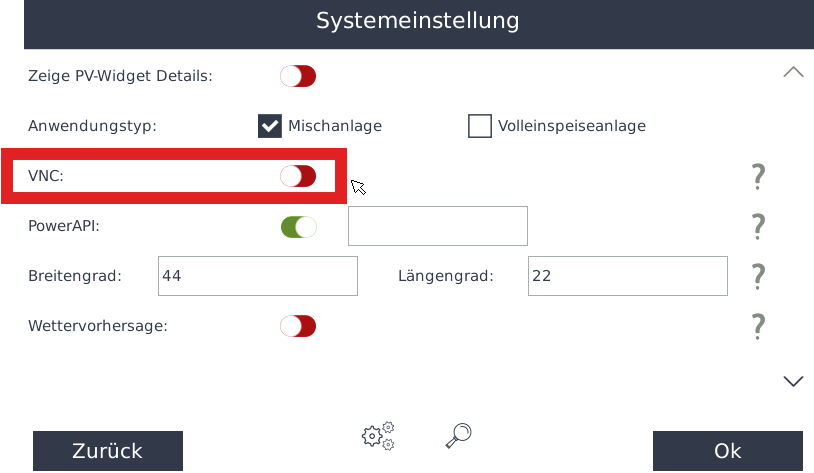
    Unter keinen Umständen den <strong>VNC-Button auf OFF</strong> schalten und anschließend mit <strong>Speichern</strong> bestätigen!<br><br>
    Ansonsten verlieren Sie die Verbindung zum Gerät.<br><br>
    Insbesondere beim Einsatz eines <strong>SmartDog DR (ohne Display)</strong> verlieren Sie danach <strong>jegliche Zugriffsmöglichkeit auf das Gerät</strong>.
</div>

---


---

<span style="color: green; font-weight: bold; font-size: 2.4em;">
    RICHTIG!!!
</span>

<div style="border: 2px solid #28a745; background-color: #eaf8ec; color: #1c7c36; padding: 20px; border-radius: 6px; font-size: 1.6em; font-weight: bold;">
    Damit Ihre Anlage über <strong>SmartDog Live</strong> zugänglich ist, muss unter <strong>VNC</strong> ein Passwort vergeben werden.
</div>

[![](https://anleitung.smart-dog.eu/uploads/images/gallery/2025-12/scaled-1680-/2jnd3erWe96WqU7m-image-1764685086464.png)](https://anleitung.smart-dog.eu/uploads/images/gallery/2025-12/2jnd3erWe96WqU7m-image-1764685086464.png)


Gehen Sie dazu wie folgt vor:

* Aktivieren Sie den VNC-Schalter (standardmäßig bereits aktiviert)

* Vergeben Sie anschließend ein Passwort für den Zugriff.

Bestätigen Sie dies anschließend mit **OK** und **Speichern**